


ESP32-S3 H.264 Camera for Alexa, Google Home
In this section, we will show you how to stream live video from an ESP32-S3 camera to
- Alexa Echo Show and the Alexa App
- Google Nest Smart Displays and Chromecast with Google TV
- Sinric Pro App and Portal
using an H.264 video track over WebRTC.
Prerequisites :
- An ESP32-S3 camera board with PSRAM (for example XIAO ESP32S3 Sense, Freenove ESP32-S3, ESP32-S3-WROOM CAM).
- Arduino IDE with ESP32 core 3.3.10 or 3.3.11.
- Libraries: SinricPro 5.1.0 or later and SinricProWebRTC 0.2.0 or later.
A classic ESP32 cannot do this. The H.264 encoder is software only and ships for the S3 alone, so a classic ESP32 camera stays App and Portal only. See ESP32 WebRTC Camera.
Why H.264?
The Sinric Pro App and Portal can display whatever the camera sends, so for those an ESP32 can simply push JPEG images over a WebRTC data channel. Alexa and Google Home cannot. They are ordinary WebRTC clients and expect a real video track, and they accept only a small set of codecs:
| Amazon Alexa | Google Home | |
|---|---|---|
| Video codec | H.264 (Baseline to High, level ≤ 4.1) | H.264 or VP8 |
| Audio codec | Opus, PCMU or PCMA | Opus, G.711 or G.722 |
| Resolution | 480p to 1080p | 480p to 1080p |
| ICE | No trickle ICE, IPv4 only | No trickle ICE |
| Answer | Within 6 seconds | — |
The two rules that matter most for a small board are H.264 and at least 480p. Neither is negotiable, which is why a camera that works beautifully in the Sinric Pro App will not appear on an Echo Show until it can encode H.264 at 640 x 480.
How does it work?
The camera decides what to send by reading the viewer’s offer, so one firmware serves everything:
- A viewer creates a WebRTC offer and Sinric Pro forwards it to your camera, adding STUN and TURN servers so the camera is reachable from outside your WiFi.
- The camera looks at the offer:
- Offer contains a video track asking for H264 → the camera re-initialises the sensor in YUV422, encodes with
esp_h264and sends H.264 over RTP. This is what Alexa and Google Home send. - Offer contains no video track → the camera keeps sending JPEG images over the data channel, exactly as before. This is what older versions of the App and Portal send.
- Offer contains a video track asking for H264 → the camera re-initialises the sensor in YUV422, encodes with
- The camera replies with an answer containing every ICE candidate it gathered, and video then flows directly between the camera and the viewer, or through the Sinric Pro TURN server when a direct path is not possible.
Because the choice is made per session, upgrading the firmware never breaks an older App or Portal.
Smart displays get 640 x 480 automatically
The App and Portal open a data channel alongside the video, and use it to carry JSON controls: resolution, frame rate, flash, flip, mirror. Alexa and Google Home open no data channel at all — they only want media.
The camera uses that as its signal. An offer with no data channel is a smart display, so the session starts at 640 x 480 rather than the configured size, because anything below 480p would be refused and there is no channel on which the viewer could ask for something larger.
What the encoder can actually do
esp_h264 encodes in software on the second core. It is not fast, and the honest numbers are:
| Resolution | Frame rate | Roughly |
|---|---|---|
| 320 x 240 (QVGA) | 3 fps | 350 ms per frame |
| 640 x 480 (VGA) | 2 fps | 1 second per frame |
Measured on a XIAO ESP32S3 Sense: 204 frames in 73 seconds at 320 x 240, with none dropped.
Each size declares the rate it can really hold, because a receiver sizes its jitter buffer from what the camera promises in the SDP. Promising 10 fps and delivering 2 makes the picture worse, not better.
The encoder costs about 272 KB of flash and just over 1 MB of PSRAM at QVGA, considerably more at VGA.
Step 1: Create the camera device
- Login to your Sinric Pro account, go to Devices and click Add Device.
- Enter a name such as Front Camera and select device type Camera.
- Open the Other tab. In Camera Stream Configuration, select Board ESP32 and Streaming Protocol WebRTC.
- Tick H.264 video track.
- Click Save. The next screen shows the Device Id, App Key and App Secret. Keep these values secure. DO NOT SHARE THEM ON PUBLIC FORUMS!
Step 2: Install the libraries
In Arduino IDE open Library Manager and install SinricPro and SinricProWebRTC.
Step 3: Flash the example
- Open File → Examples → SinricProWebRTC → SinricProCamera.
- In
Settings.h, setWIFI_SSID,WIFI_PASS,APP_KEY,APP_SECRET,CAMERA_IDandCAMERA_BOARD(pick your board fromBoardProfiles.h). - Under Tools, enable PSRAM and choose a partition scheme with at least a 3 MB app, such as Huge APP (3MB No OTA).
- Upload, then open the Serial Monitor at 115200 baud. You should see:
Camera: XIAO ESP32S3 Sense, PSRAM: 8388608 bytes
WiFi connected: 192.168.1.194
Connected to SinricPro
The example turns H.264 on by itself when it is compiled for an ESP32-S3:
#if CONFIG_IDF_TARGET_ESP32S3
#define WEBRTC_H264 1
#else
#define WEBRTC_H264 0
#endif
and tells Sinric Pro that viewers may ask for a video track:
camera.enableWebRTCVideo(WEBRTC_H264);
Step 4: Demo
- Ask Alexa or Google Home to discover new devices.
- Alexa: “Alexa, show me the Front Camera”
- Google Home: “Show me the Front Camera on Living Room TV” (the name of your Chromecast with Google TV)
You should see WebRTC offer ... and WebRTC answer sent in the Serial Monitor as the display connects.
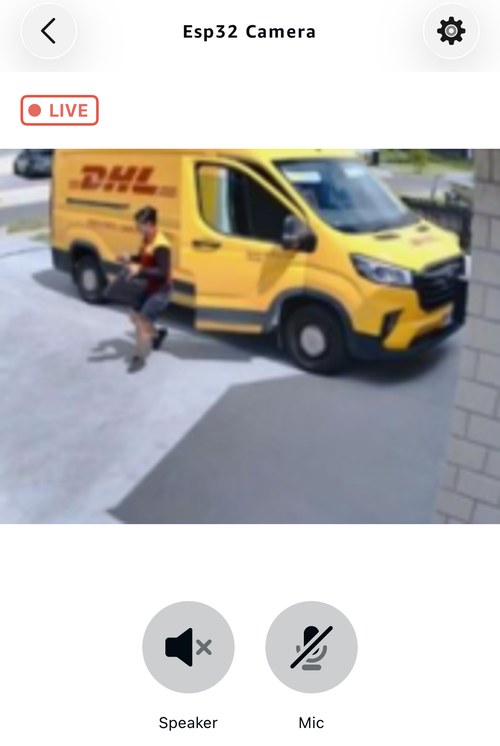
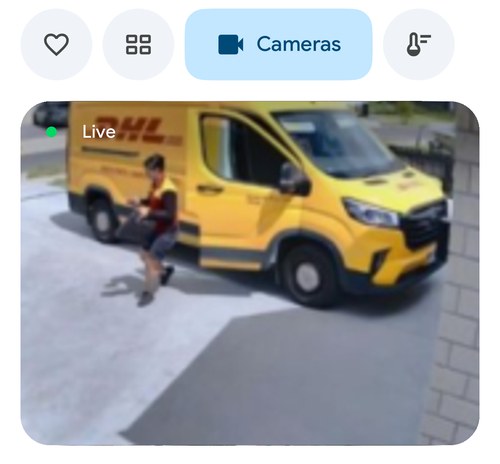
The camera also opens in the Alexa app and the Google Home app on your phone.
Alexa app:
Google Home app:
Limitations
- ESP32-S3 only. There is no software H.264 encoder for the classic ESP32.
- Frame rate is low: about 3 fps at 320 x 240 and 2 fps at 640 x 480. Alexa and Google Home always get 640 x 480, so expect roughly 2 fps there.
- One viewer at a time. A new viewer replaces the current one.
- Resolution is fixed for the duration of an H.264 session. The viewer’s resolution control is disabled while a video track is running.
- Audio is available where the board has a microphone, such as the XIAO ESP32S3 Sense.
- Google Home WebRTC only works on Google Nest Smart Displays and Chromecast with Google TV.
Troubleshooting
- The camera never appears on the Echo Show. Check that H.264 video track is ticked in Camera Stream Configuration, and that the device is an ESP32-S3. Without it Sinric Pro does not advertise the camera to Alexa at all.
Camera init failed: wrongCAMERA_BOARD, or PSRAM is disabled under Tools.- “Live View isn’t available right now” on Alexa: look in the Serial Monitor.
WebRTC answer failedmeans the camera could not build an answer in time; no message at all usually means the offer never arrived. - Streams at home but not on mobile data: that network blocks direct connections, so the stream has to be relayed through TURN.
- You can validate the Google payload with the Google WebRTC validator.
Please refer to our Troubleshooting page for possible solutions to your issue.
This document is open source. See a typo? Please create an issue