


How to Control a Relay (Turn On/Off) Using MicroPython on an Raspberry Pi Pico W with Thonny
In this guide, we’ll show you how to set up MicroPython on your Raspberry Pi Pico W, create a Sinric Pro smart switch, and control it using popular smart home platforms like Alexa, Google Home, and SmartThings.
Prerequisites :
- Raspberry Pi Pico W dev board x 1.
- SPDT Relay controller x 1.
- Jumper Wires.
Install MicroPython on Your Raspberry Pi Pico W
-
Download the latest MicroPython firmware for the Raspberry Pi Pico W from: https://rpf.io/pico-w-firmware
-
Connect one end of a micro USB cable to your Raspberry Pi Pico W.
-
Press and hold the BOOTSEL button on the Pico W.
-
Plug the other end of the USB cable into your computer (desktop, laptop, or Raspberry Pi).
-
The Pico W will appear as a removable drive (typically named
RPI-RP2) in your file manager.
Drag and drop the downloaded MicroPython.uf2file onto this drive.
The Pico W will automatically reboot and disconnect—this is normal. Once complete, MicroPython will be installed and ready to use.
Test the Installation:
-
Open the Thonny editor.
-
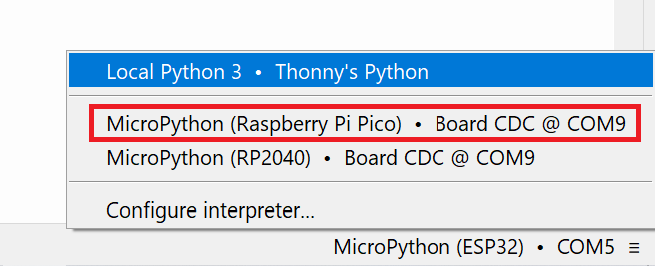
At the bottom right, click on the text and select MicroPython (Raspberry Pi Pico) from the options.
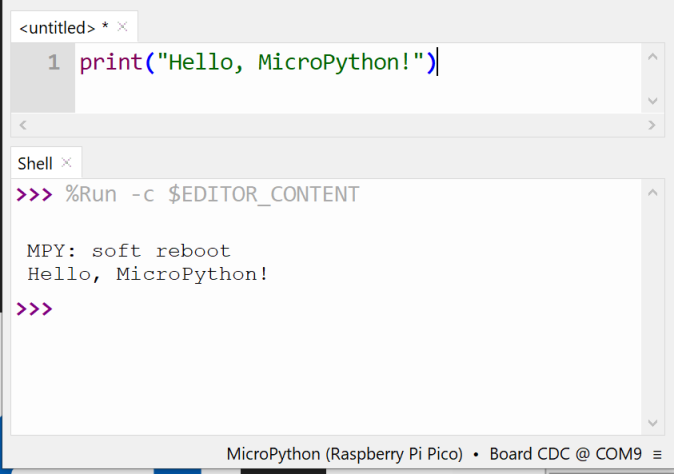
In the shell, type
print("Hello, MicroPython!")
Setup SinricPro library
-
Download the latest Wheel
.whlfrom https://github.com/sinricpro/micropython-sinricpro-sdk/releases -
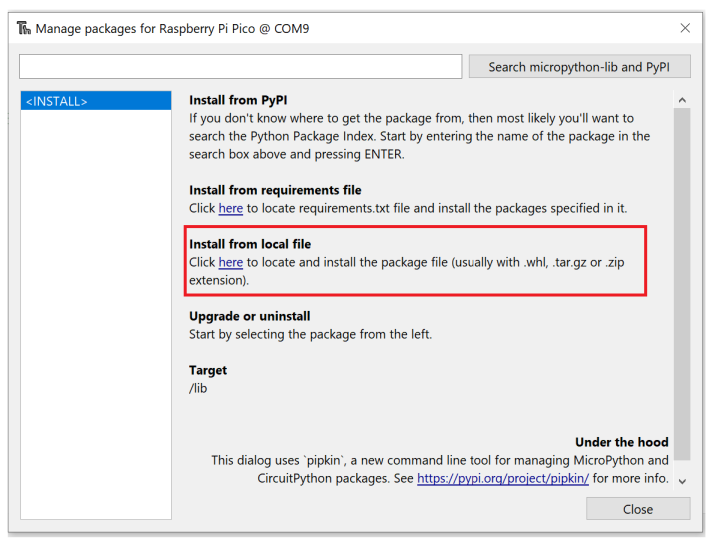
In Thonny, choose Tools > Manage packages.
-
Click
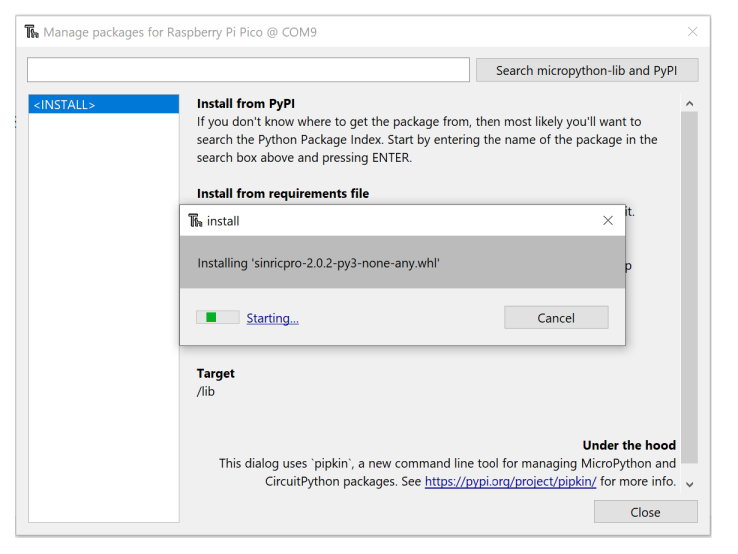
HereinInstall from Local Filesection and continue the installtion.
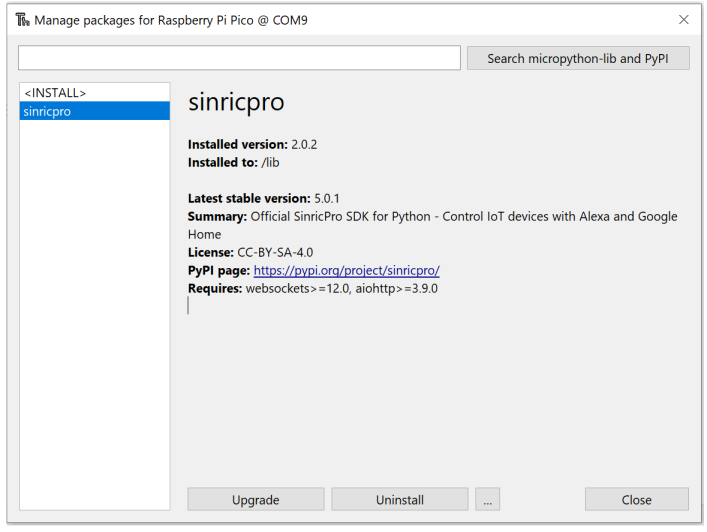
Sinric Pro integration
Step 1 : Create a new device in Sinric Pro
- Login to your Sinric Pro account, go to Devices menu on your left and click Add Device button (On top left).
- Enter the device name Switch, description My First Switch and select the device type as Switch.
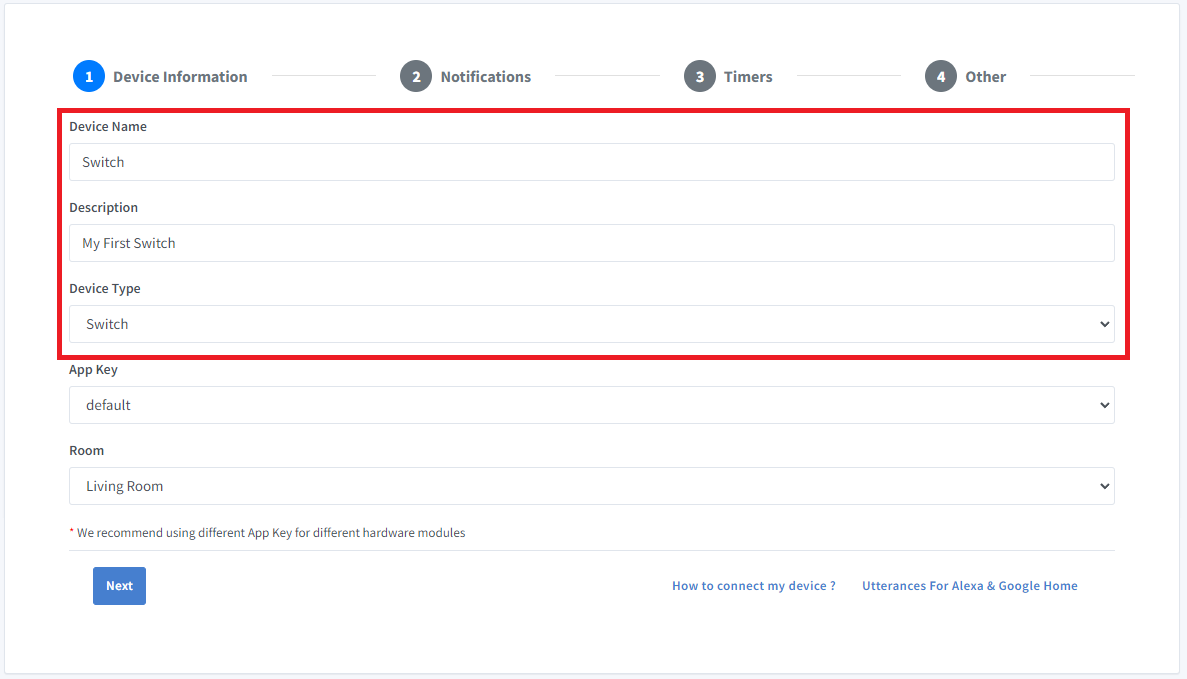
- Click Next the in the Notifications tab
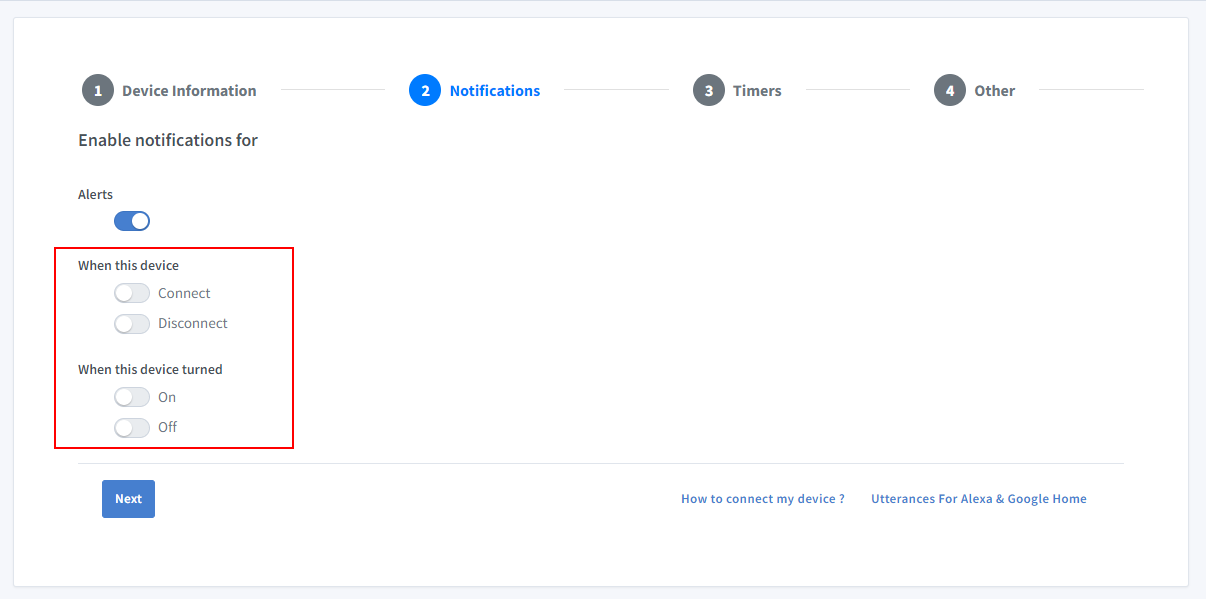
To receive push notifications when your device goes online or offline, enable the “Connect and Disconnect” option in the Sinric Pro app. To receive push notifications when your device turns on or off, enable the “On and Off” option.
-
Click Others and Click Save
-
Next screen will show the credentials required to connect the device you just created.
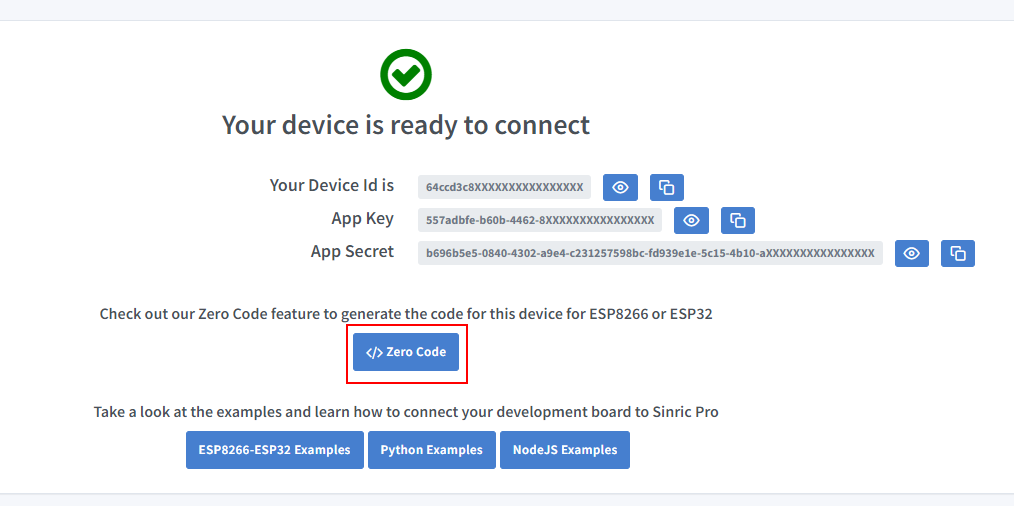
- Copy the Device Id, App Key and App Secret Keep these values secure. DO NOT SHARE THEM ON PUBLIC FORUMS !
Step 2 : Coding
Paste the following code in main.py
from sinricpro import SinricPro
from sinricpro.devices.sinricpro_switch import SinricProSwitch
from machine import Pin

import uasyncio as a
import network

# enter wifi details
ssid = ""
ssid_password = ""

# enter appkey, appsecret and device id from above
app_key    = ""
app_secret = ""
device_id  = ""

# relay is connected to GPIO 16
relay = Pin(16, Pin.OUT)

async def on_disconnected():
    print('Disconnected from SinricPro...reboot?')

async def on_connected():
    print('Connected to SinricPro...')

async def on_power_state_callback(device_id: str, state: bool):
    print(f'device id: {device_id} state: {state}')

    if state:
        relay.value(1)
    else:
        relay.value(0)

    return True

# connect to wifi
def do_connect():
    sta_if = network.WLAN(network.STA_IF)
    ap = network.WLAN(network.AP_IF) # create access-point interface
    ap.active(False)         # deactivate the interface
    if not sta_if.isconnected():
        print('Connecting to network...')
        sta_if.active(True)
        sta_if.connect(ssid, ssid_password)
        while not sta_if.isconnected():
            pass
    print('Connected network config:', sta_if.ifconfig())

# start sinricpro
def do_sinricpro():
    sinricpro = SinricPro()
    sinricpro.on_connected(on_connected)
    sinricpro.on_disconnected(on_disconnected)

    sinricpro_switch = SinricProSwitch(device_id)
    sinricpro_switch.on_power_state(on_power_state_callback)

    sinricpro.add_device(sinricpro_switch)
    sinricpro.start(app_key, app_secret)

# main coroutine
async def main():
    do_connect()
    do_sinricpro()

    while True:
        await a.sleep_ms(10_000)

# start asyncio task and loop
try:
    # start the main async tasks
    a.run(main())
finally:
    # reset and start a new event loop for the task scheduler
    a.new_event_loop()
That’s it.
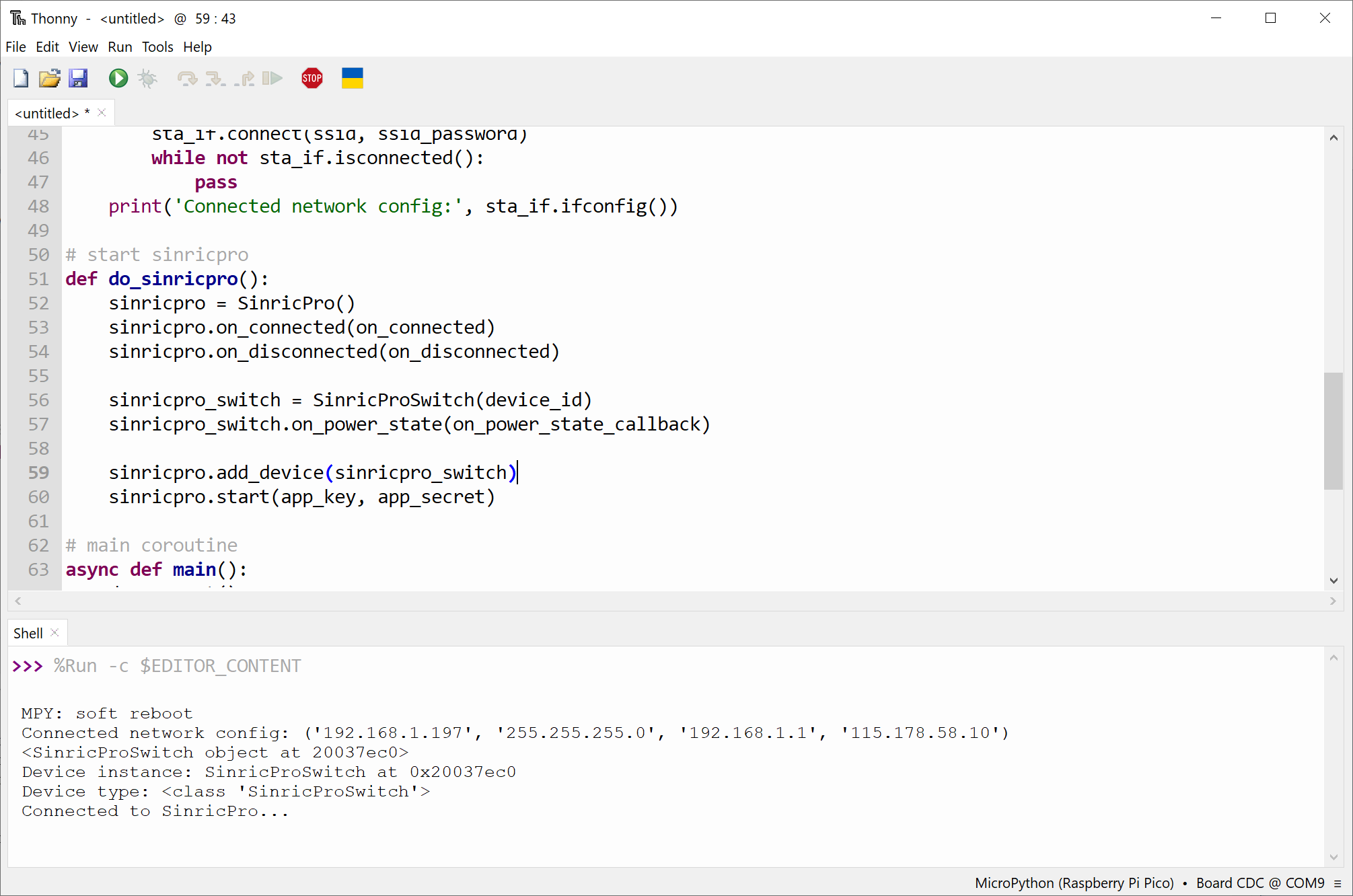
Now the device is connected to Sinric Pro server and you can control it via Sinric Pro App, Alexa Skill, Google Home Action or SmartThings
This document is open source. See a typo? Please create an issue