


Come controllare un relè (accendere/spegnere) con MicroPython su un Raspberry Pi Pico W con Thonny
In questa guida ti mostriamo come installare MicroPython sul tuo Raspberry Pi Pico W, creare uno smart switch Sinric Pro e controllarlo con le piattaforme smart home più diffuse come Alexa, Google Home e SmartThings.
Prerequisiti :
- Scheda Raspberry Pi Pico W x 1.
- Modulo relè SPDT x 1.
- Cavi jumper.
Installa MicroPython sul tuo Raspberry Pi Pico W
-
Scarica l’ultimo firmware MicroPython per Raspberry Pi Pico W da: https://rpf.io/pico-w-firmware
-
Collega un’estremità di un cavo micro USB al tuo Raspberry Pi Pico W.
-
Tieni premuto il pulsante BOOTSEL sul Pico W.
-
Collega l’altra estremità del cavo USB al tuo computer (desktop, laptop o Raspberry Pi).
-
Il Pico W comparirà come unità removibile (in genere chiamata
RPI-RP2) nel file manager.
Trascina e rilascia il file.uf2di MicroPython scaricato su questa unità.
Il Pico W si riavvierà automaticamente e si disconnetterà: è normale. Al termine, MicroPython sarà installato e pronto all’uso.
Verifica l’installazione:
-
Apri l’editor Thonny.
-
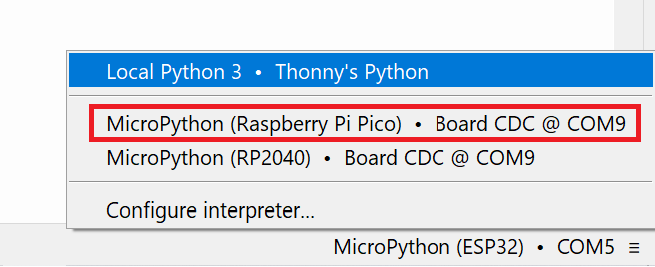
In basso a destra, fai clic sul testo e seleziona MicroPython (Raspberry Pi Pico) dalle opzioni.
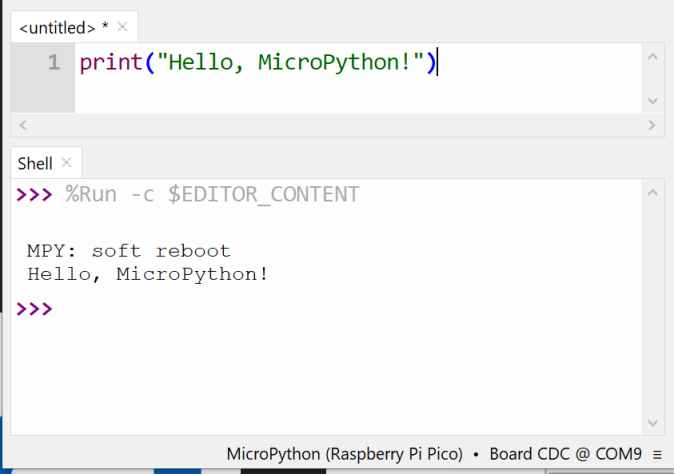
Nella shell, digita
print("Hello, MicroPython!")
Configura la libreria SinricPro
-
Scarica l’ultimo Wheel
.whlda https://github.com/sinricpro/micropython-sinricpro-sdk/releases -
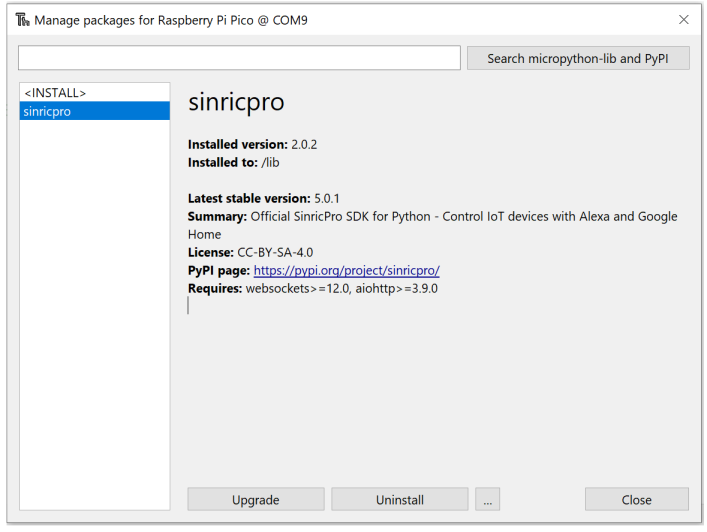
In Thonny, scegli Tools > Manage packages.
-
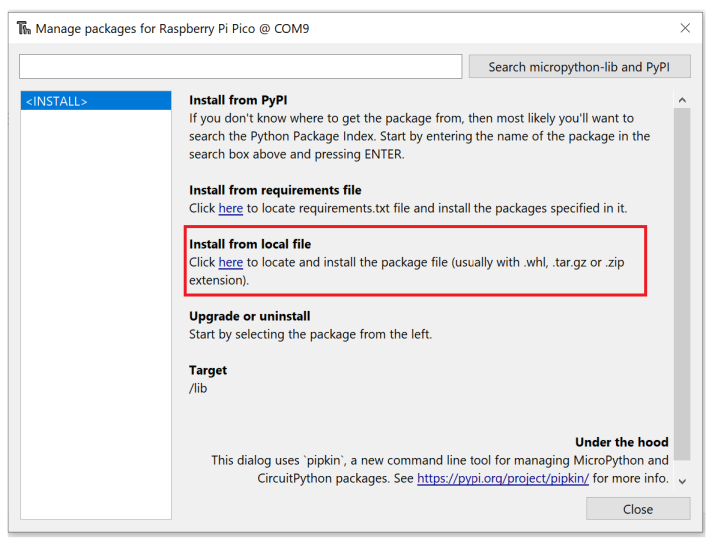
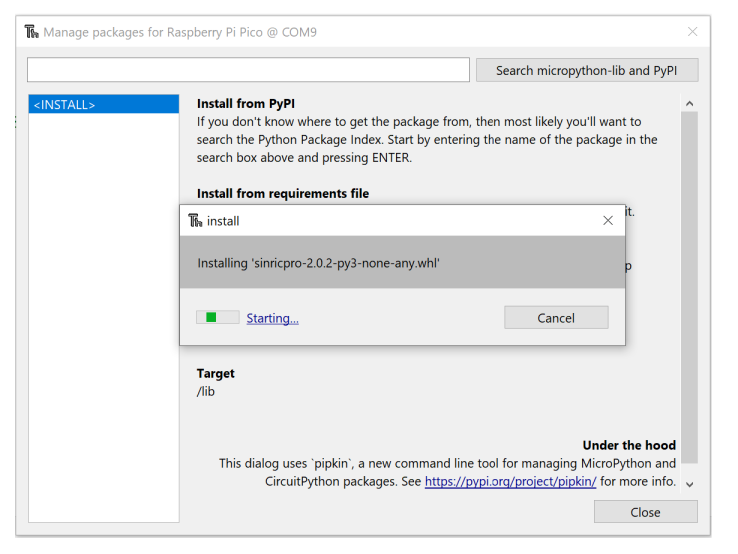
Fai clic su
Herenella sezioneInstall from Local Filee procedi con l’installazione.
Integrazione con Sinric Pro
Passo 1 : Crea un nuovo dispositivo in Sinric Pro
- Accedi al tuo account Sinric Pro, vai al menu Devices a sinistra e fai clic sul pulsante Add Device (in alto a sinistra).
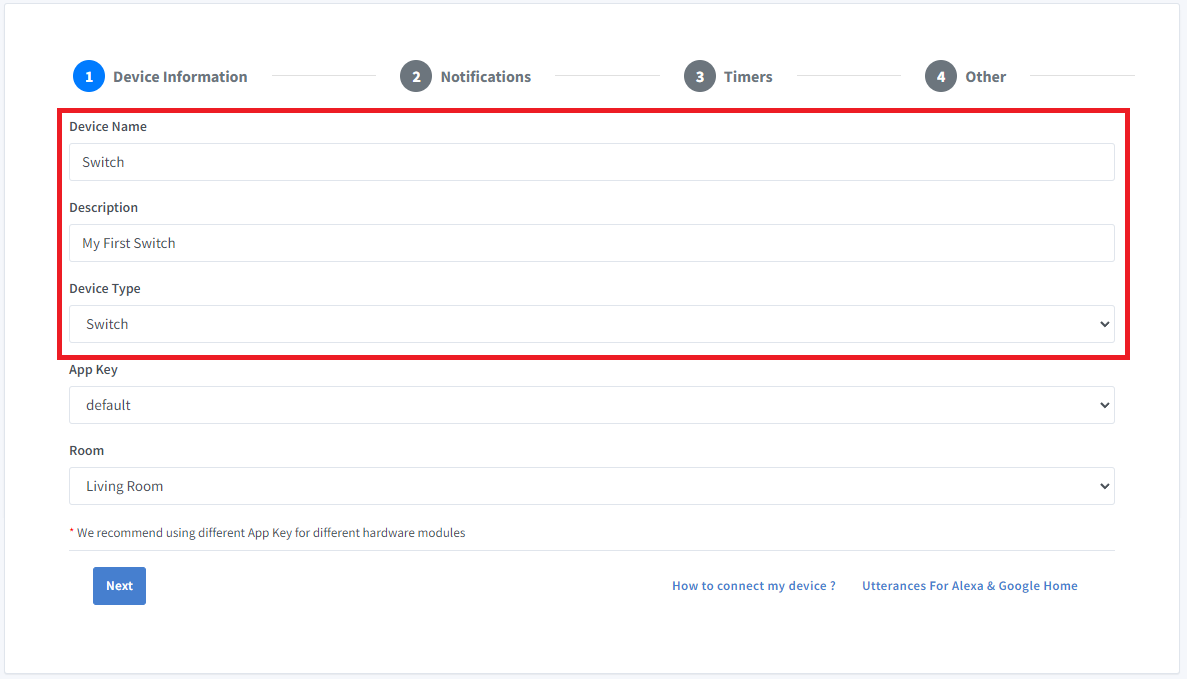
- Inserisci il nome del dispositivo Switch, la descrizione My First Switch e seleziona come tipo di dispositivo Switch.
- Fai clic su Next nella scheda Notifications
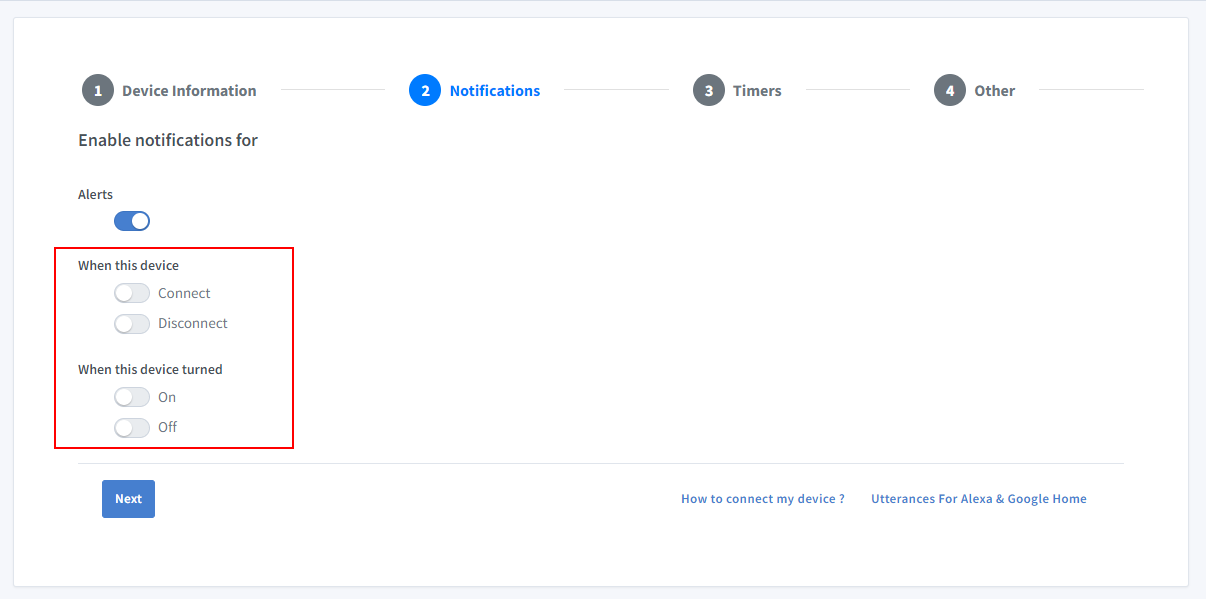
Per ricevere notifiche push quando il dispositivo si connette o si disconnette, abilita l’opzione “Connect and Disconnect” nell’app Sinric Pro. Per ricevere notifiche push quando il dispositivo si accende o si spegne, abilita l’opzione “On and Off”.
-
Fai clic su Others e poi su Save
-
La schermata successiva mostrerà le credenziali necessarie per collegare il dispositivo appena creato.
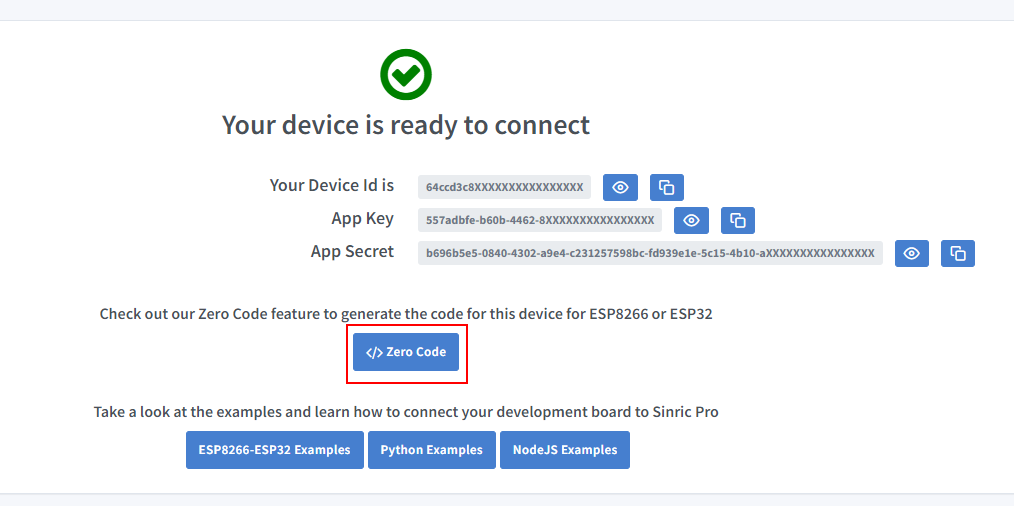
- Copia Device Id, App Key e App Secret Tieni questi valori al sicuro. NON CONDIVIDERLI SU FORUM PUBBLICI !
Passo 2 : Programmazione
Incolla il seguente codice in main.py
from sinricpro import SinricPro
from sinricpro.devices.sinricpro_switch import SinricProSwitch
from machine import Pin

import uasyncio as a
import network

# enter wifi details
ssid = ""
ssid_password = ""

# enter appkey, appsecret and device id from above
app_key    = ""
app_secret = ""
device_id  = ""

# relay is connected to GPIO 16
relay = Pin(16, Pin.OUT)

async def on_disconnected():
    print('Disconnected from SinricPro...reboot?')

async def on_connected():
    print('Connected to SinricPro...')

async def on_power_state_callback(device_id: str, state: bool):
    print(f'device id: {device_id} state: {state}')

    if state:
        relay.value(1)
    else:
        relay.value(0)

    return True

# connect to wifi
def do_connect():
    sta_if = network.WLAN(network.STA_IF)
    ap = network.WLAN(network.AP_IF) # create access-point interface
    ap.active(False)         # deactivate the interface
    if not sta_if.isconnected():
        print('Connecting to network...')
        sta_if.active(True)
        sta_if.connect(ssid, ssid_password)
        while not sta_if.isconnected():
            pass
    print('Connected network config:', sta_if.ifconfig())

# start sinricpro
def do_sinricpro():
    sinricpro = SinricPro()
    sinricpro.on_connected(on_connected)
    sinricpro.on_disconnected(on_disconnected)

    sinricpro_switch = SinricProSwitch(device_id)
    sinricpro_switch.on_power_state(on_power_state_callback)

    sinricpro.add_device(sinricpro_switch)
    sinricpro.start(app_key, app_secret)

# main coroutine
async def main():
    do_connect()
    do_sinricpro()

    while True:
        await a.sleep_ms(10_000)

# start asyncio task and loop
try:
    # start the main async tasks
    a.run(main())
finally:
    # reset and start a new event loop for the task scheduler
    a.new_event_loop()
Ecco fatto.
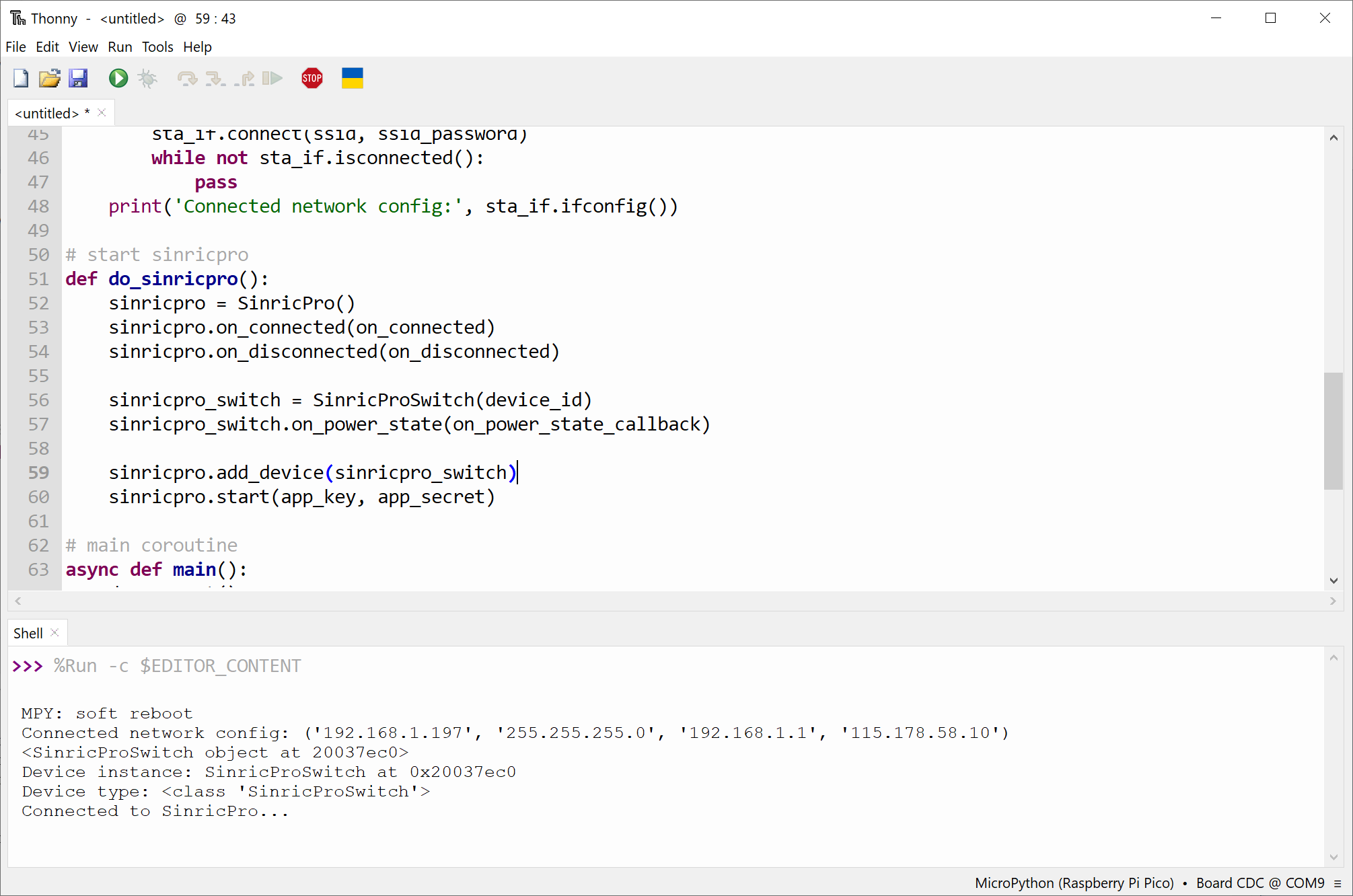
Ora il dispositivo è connesso al server Sinric Pro e puoi controllarlo tramite l’app Sinric Pro, la skill Alexa, l’action Google Home o SmartThings
Tutorial correlati
- Come controllare un ESP32 o ESP8266 con Alexa e Google Home
- Relè con MicroPython su ESP32
- Tutorial switch parte 1: accendere e spegnere un relè
Questo documento è open source. Hai trovato un errore di battitura? Crea una issue