


Water Sensor (also known as Water leak, flood, or rain detector) for ESP8266, ESP32, Raspberry Pi Pico W for Alexa
In this tutorial, we’ll build a water sensor that can be connected to an ESP32, ESP8266, or Raspberry Pi Pico W and use it to monitor for water leaks, floods, or rainfall. With Amazon Alexa, you can check the status of your water sensor, ask for information about it, and receive push notifications when water is detected.

Prerequisites :
- ESP32, ESP8266 or Raspberry Pi Pico W x 1.
- Water Sensor x 1.
- Jumper Wires.
Quick introduction to Water Sensor
A water detector, also known as a water sensor, is a device that detects the presence of water. Water detectors work in a variety of ways. Some common types of water detectors include:
-
Conductivity detectors: Conductivity detectors work by measuring the electrical conductivity of the water. When the sensor comes into contact with water, the electrical conductivity increases.
-
Capacitance detectors: Capacitance detectors work by measuring the capacitance of the water. When the sensor comes into contact with water, the capacitance increases.
-
Optical detectors: Optical detectors work by detecting the changes in the refractive index of water. When the sensor comes into contact with water, the refractive index changes.
Note: Water sensors have a shorter lifespan because they are exposed to water. This can cause the sensor to corrode quickly when it’s powered on while immersed in water. To avoid this, it is we are going to only turn on the sensor when taking readings.
Wiring Water Sensor
Let’s hook up the water level sensor.

| MCU | S Pin | VCC Pin |
|---|---|---|
| ESP32 | 34 (Analog ADC1_CH6) | 17 |
| ESP8266 | A0 | D2 |
| Pico W | GP26 (ADC0) | 6 |
Note: on ESP32, ADC2 (GPIO04, GPIO02, GPIO15) is unstable when Wi-Fi is being used.
Reading from Water Sensor
Let’s verify that sensor is wired correctly and working.
#if defined(ESP8266)
  const int sPin = A0;
  const int vccPin = D2;
#elif defined(ESP32)
  const int sPin = 34;
  const int vccPin = 17;
#elif defined(ARDUINO_ARCH_RP2040)
  const int sPin = 26;
  const int vccPin = 6;
#endif

void setup() {
  Serial.begin(9600);
  pinMode(sPin, INPUT);
  pinMode(vccPin, OUTPUT);
  digitalWrite(vccPin, LOW); // turn off the sensor at the begining.
}

void loop() {
  digitalWrite(vccPin, HIGH);         // turn on the power for sensor.
  delay(100);                           // wait 100ms
  int value = analogRead(SIGNAL_PIN);   // make a reading from sensor
  digitalWrite(POWER_PIN, LOW);         // turn off the sensor
  Serial.printf("value: %d\n", value);  // print reading
  delay(1000);
}

Detecting flooding
#if defined(ESP8266)
  const int sPin = A0;
  const int vccPin = D2;
#elif defined(ESP32)
  const int sPin = 34;
  const int vccPin = 17;
#elif defined(ARDUINO_ARCH_RP2040)
  const int sPin = 26;
  const int vccPin = 6;
#endif

const int FLOOD_THRESHOLD = 100;

void setup() {
  Serial.begin(9600);
  pinMode(sPin, INPUT);
  pinMode(vccPin, OUTPUT);
  digitalWrite(vccPin, LOW); // turn off the sensor at the begining.
}

void loop() {
  digitalWrite(vccPin, HIGH);         // turn on the power for sensor.
  delay(100);                           // wait 100ms
  int value = analogRead(sPin);   // make a reading from sensor
  digitalWrite(vccPin, LOW);         // turn off the sensor

  if (value > FLOOD_THRESHOLD) {
    Serial.print("Flooding detected");
  }

  delay(1000);
}
Detecting water level
#if defined(ESP8266)
  const int sPin = A0;
  const int vccPin = D2;
#elif defined(ESP32)
  const int sPin = 34;
  const int vccPin = 17;
#elif defined(ARDUINO_ARCH_RP2040)
  const int sPin = 26;
  const int vccPin = 6;
#endif

const int SENSOR_MAX = 560;
const int SENSOR_MIN = 1;

void setup() {
  Serial.begin(9600);
  pinMode(sPin, INPUT);
  pinMode(vccPin, OUTPUT);
  digitalWrite(vccPin, LOW); // turn off the sensor at the begining.
}

void loop() {
  digitalWrite(vccPin, HIGH);         // turn on the power for sensor.
  delay(100);                           // wait 100ms
  int value = analogRead(sPin);   // make a reading from sensor
  digitalWrite(vccPin, LOW);         // turn off the sensor

  int waterLevelHeightInCm = map(value, SENSOR_MIN, SENSOR_MAX, 0, 5); // Map sensor value between 0..5 levels (1 cm = 1 level)
  Serial.printf("Water level: %d\n", waterLevelHeightInCm);  // print reading

  delay(1000);
}
Step 1 : Connect to Sinric Pro
Step 1.1 : Creating a custom device type for Water Sensor.
Sinric Pro does not have a built-in device type for Water/Flood Sensor so we are going to create a custom device type for Water Sensor using Device Template feature to see.
-
Flooding in the basement or not .
-
Water level.
Note: You can use the device template import feature mentioned below to skip creating the full template.
-
Login to your Sinric Pro account and goto Device Templates
-
Click Add Device Template. Enter name and description as Flood Sensor and select Flood Sensor as device type

- Click Capabilities.
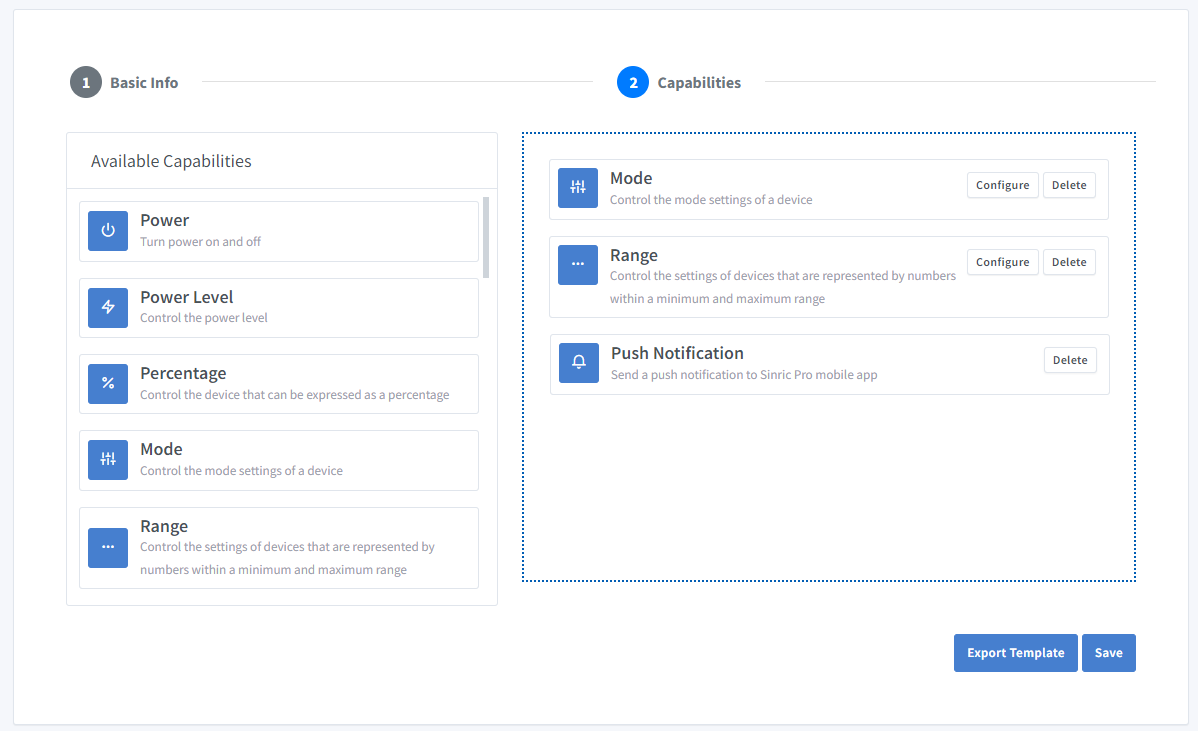
Here we must select the features of our Soil Moisture Sensor. We want to know whether Soil is Wet or Dry and the Moisture level. So let’s drag a Range, a Mode and Push Notification capability.
-
What’s Range capability?
Range capability can be use to represents a number. eg: current speed of a blender.
-
What’s Mode capability?
Mode capability can be use to represents a value out of list of predefined values. eg: current wash cycle mode of a washing machine.
-
What’s Push Notification capability?
Notification capability provides the ability to send a push notification message from the code.
Click on Configure button and setup the two capabilities like below.

Click on Save to save.

Click on Save to save the template.

Now you can see the template we just created.
Import an existing template?
If you are feeling lazy setup all the Modes and Range values, you can use the import feature.
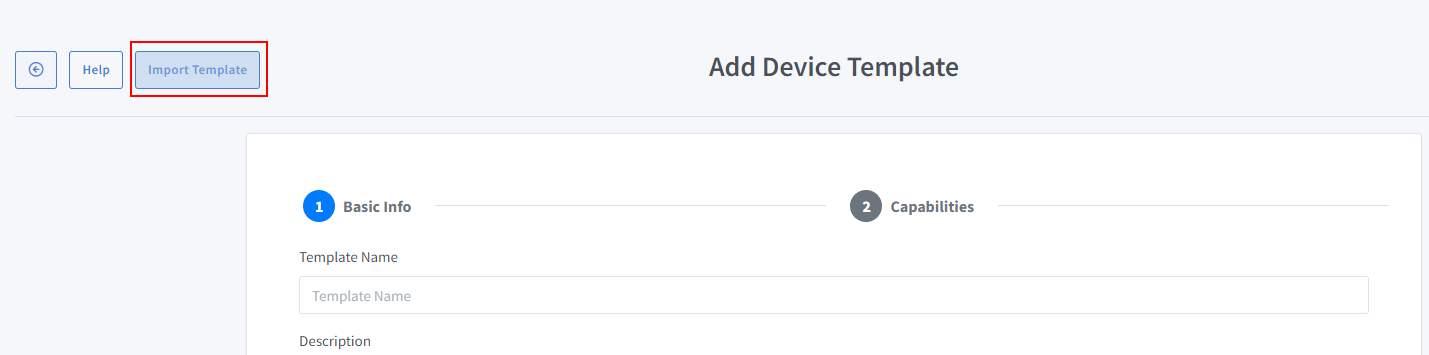
Paste this Template:
{
  "name": "Flood Sensor",
  "description": "Flood Sensor",
  "deviceTypeId": "65335c897dc29736db4272d2",
  "capabilities": [
    {
      "id": "5ff0b41b994fd31b7d5e8961",
      "mode": {
        "instanceId": "modeInstance1",
        "locale": "en-US",
        "modeName": "Flooding",
        "nonControllable": true,
        "modeValues": [
          "Yes",
          "No"
        ]
      }
    },
    {
      "id": "5ff0b45f994fd31b7d5e89c2",
      "range": {
        "instanceId": "rangeInstance1",
        "locale": "en-US",
        "rangeName": "Water Level",
        "minimumValue": 0,
        "maximumValue": 10,
        "precision": 1,
        "unitOfMeasure": "600e7937a7a09c3f3230f8ed",
        "presets": [],
        "nonControllable": true
      }
    },
    {
      "id": "62a707bd9e2f39090569e2d3"
    }
  ]
}
-
Login to your Sinric Pro account, go to Devices menu on your left and click Add Device button (On top left).
-
Enter the device name Flood Sensor, description My Flood Sensor and select the device type as Flood Sensor.

-
Click Others tab and Click Save
-
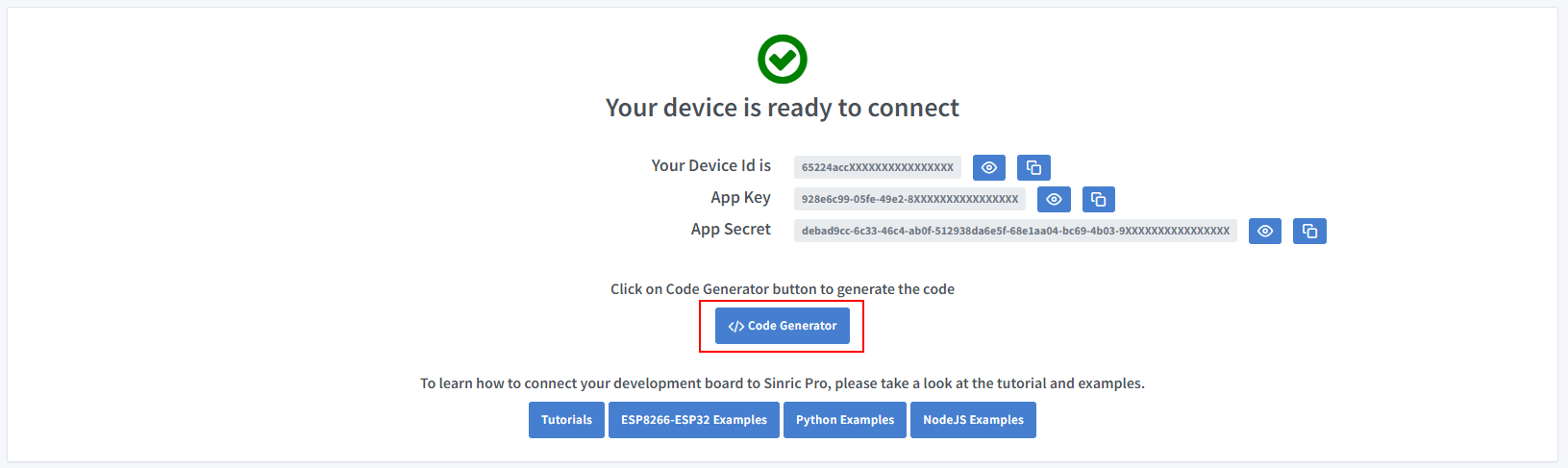
Next screen will show the credentials required to connect the device you just created.
-
Copy the Device Id, App Key and App Secret Keep these values secure. DO NOT SHARE THEM ON PUBLIC FORUMS !
-
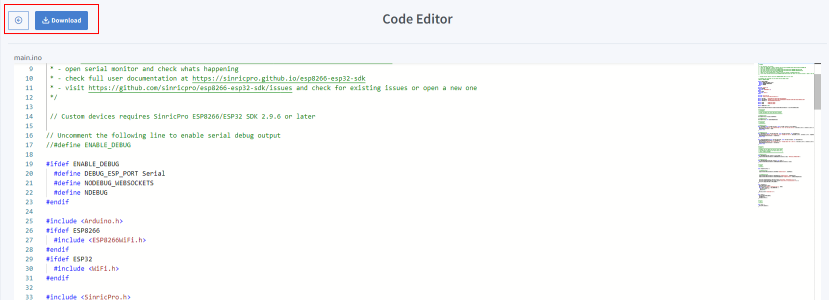
Click on Code Generator to Generate the code. Click on Download to download the code.
Step 2 : Connect to Sinric Pro
Step 2.1 Install Sinric Pro Library
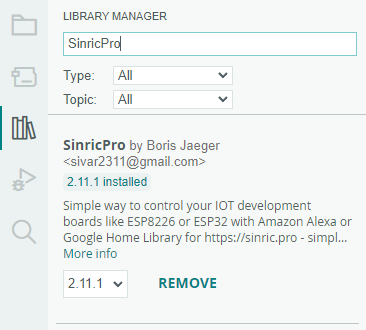
2.2 Complete Code
FloodSensor.h
#ifndef _FLOODSENSOR_H_
#define _FLOODSENSOR_H_

#include <SinricProDevice.h>
#include <Capabilities/ModeController.h>
#include <Capabilities/RangeController.h>
#include <Capabilities/PushNotification.h>

class FloodSensor
: public SinricProDevice
, public ModeController<FloodSensor>
, public RangeController<FloodSensor>
, public PushNotification<FloodSensor> {
  friend class ModeController<FloodSensor>;
  friend class RangeController<FloodSensor>;
  friend class PushNotification<FloodSensor>;
public:
  FloodSensor(const String &deviceId) : SinricProDevice(deviceId, "FloodSensor") {};
};

#endif
sinricpro-flood-sensor.ino
// Uncomment the following line to enable serial debug output
//#define ENABLE_DEBUG

#ifdef ENABLE_DEBUG
  #define DEBUG_ESP_PORT Serial
  #define NODEBUG_WEBSOCKETS
  #define NDEBUG
#endif

#include <Arduino.h>
#ifdef ESP8266
  #include <ESP8266WiFi.h>
#endif
#ifdef ESP32
  #include <WiFi.h>
#endif

#include <SinricPro.h>
#include "FloodSensor.h"
#include <math.h>

// Grab it from https://portal.sinric.pro.
#define APP_KEY    "" //Should look like "de0bxxxx-1x3x-4x3x-ax2x-5dabxxxxxxxx"
#define APP_SECRET "" //Should look like "5f36xxxx-x3x7-4x3x-xexe-e86724a9xxxx-4c4axxxx-3x3x-x5xe-x9x3-333d65xxxxxx"
#define DEVICE_ID  "" //Should look like "6534xxxxxxxc08c6ea1b"

#define SSID       "" // Your WiFi SSID
#define PASS       "" // Your WiFi Password

#define BAUD_RATE         115200
#define EVENT_WAIT_TIME   60000               // send event every 60 seconds

#if defined(ESP8266)
  const int sPin = A0;
  const int vccPin = D2;
#elif defined(ESP32)
  const int sPin = 34;
  const int vccPin = 17;
#elif defined(ARDUINO_ARCH_RP2040)
  const int sPin = 26;
  const int vccPin = 6;
#endif

FloodSensor &floodSensor = SinricPro[DEVICE_ID];

const int FLOOD_THRESHOLD = 100;
const int SENSOR_MAX = 560;
const int SENSOR_MIN = 1;

int waterSensorValue = 0;
int lastWaterSensorValue = 0;
String lastIsFloodingStr = "";

// ModeController
void updateMode(String mode) {
  floodSensor.sendModeEvent("modeInstance1", mode, "PHYSICAL_INTERACTION");
}

// RangeController
void updateRangeValue(float value) {
  floodSensor.sendRangeValueEvent("rangeInstance1", value);
}

// PushNotificationController
void sendPushNotification(String notification) {
  floodSensor.sendPushNotification(notification);
}

float floatMap(float x, float a, float b, float c, float d) {
  float f=x/(b-a)*(d-c)+c;
  return f;
}

float floatRound(float in_value, int decimal_place) {
 float multiplier = powf( 10.0f, decimal_place );
 in_value = roundf( in_value * multiplier ) / multiplier;
 return in_value;
}

void handleWaterSensor() {
  if (SinricPro.isConnected() == false) {
    return;
  }

  static unsigned long last_millis;
  unsigned long        current_millis = millis();
  if (last_millis && current_millis - last_millis < EVENT_WAIT_TIME) return;
  last_millis = current_millis;

  digitalWrite(vccPin, HIGH);     // turn on the power for sensor.
  delay(100);                     // wait 100ms
  waterSensorValue = analogRead(sPin); // make a reading from sensor
  digitalWrite(vccPin, LOW);      // turn off the sensor

  Serial.printf("Water sensor value: %d\r\n", waterSensorValue);

  if (waterSensorValue == lastWaterSensorValue) {
    Serial.printf("Water sensor did not changed. do nothing...!\r\n");
    return;
  }

  /* determine whether flooding */
  String isFloodingStr = "";
  if(waterSensorValue > FLOOD_THRESHOLD) {
    isFloodingStr = "Yes"; // NOTE: must be Yes, No. This is from modes list in template.
  } else {
    isFloodingStr = "No";
  }

  /* Update Flooding label if changed */
  if(lastIsFloodingStr != isFloodingStr) {
    lastIsFloodingStr = isFloodingStr;
    updateMode(isFloodingStr);
  }

  delay(500);

  /* update Water Level label */
  float sensorValueToInches = floatMap(waterSensorValue, SENSOR_MIN, SENSOR_MAX, 0, 1.9); /* map the sensor value to inches */
  float roundedSensorValueToInches = floatRound(sensorValueToInches, 2); /* round the sensor value to 1 decimal point */
  Serial.printf("Water level height in inches: %f\r\n", roundedSensorValueToInches);
  updateRangeValue(roundedSensorValueToInches);


  /* send a push notification when flooding is detected! */
  if(waterSensorValue > FLOOD_THRESHOLD) {
    sendPushNotification("Flooding detected in the basement!");
  }

  lastWaterSensorValue = waterSensorValue;  // save to compare next time.
}


/*********
 * Setup *
 *********/
void setupWaterSensor() {
  pinMode(sPin, INPUT);
  pinMode(vccPin, OUTPUT);
  digitalWrite(vccPin, LOW); // turn off the sensor at the begining.
}

void setupSinricPro() {
  SinricPro.onConnected([]{ Serial.printf("[SinricPro]: Connected\r\n"); });
  SinricPro.onDisconnected([]{ Serial.printf("[SinricPro]: Disconnected\r\n"); });
  SinricPro.begin(APP_KEY, APP_SECRET);
};

void setupWiFi() {
  #if defined(ESP8266)
    WiFi.setSleepMode(WIFI_NONE_SLEEP);
    WiFi.setAutoReconnect(true);
  #elif defined(ESP32)
    WiFi.setSleep(false);
    WiFi.setAutoReconnect(true);
  #endif

  WiFi.begin(SSID, PASS);
  Serial.printf("[WiFi]: Connecting to %s", SSID);
  while (WiFi.status() != WL_CONNECTED) {
    Serial.printf(".");
    delay(250);
  }
  Serial.printf("connected\r\n");
}

void setup() {
  Serial.begin(BAUD_RATE);
  setupWaterSensor();
  setupWiFi();
  setupSinricPro();
}

/********
 * Loop *
 ********/

void loop() {
  handleWaterSensor();
  SinricPro.handle();
}
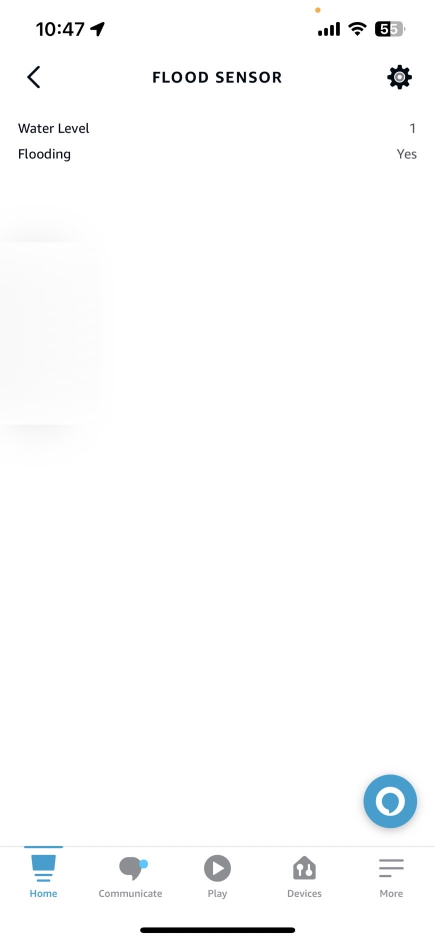
Now you should be able to see the flooding status and water level via Alexa, Sinric Pro App
Alexa, What’s the flooding (mode name) in flood sensor(device name)
Alexa, What’s the water level(range name) in flood sensor(device name)

Step 3 : Voice Announcements!
✅ How it works:
1️⃣ Add a Switch in SinricPro (your secret trigger!)
2️⃣ Create an Alexa Routine that speaks your message when a “Basement is flooding!” when Switch turned on
3️⃣ Send a power state event to turn ON that switch from your code
void triggerVoiceAnnouncement() {
    SinricProSwitch& mySwitch = SinricPro[SWITCH_ID];
    mySwitch.sendPowerStateEvent(true);
}
Troubleshooting
-
Google Home or SmartThings are not Supported.
-
Please refer to our Troubleshooting page for more details.
Related tutorials
- How to control an ESP32 or ESP8266 with Alexa and Google Home
- Water tank level with an HC-SR04 ultrasonic sensor
- Capacitive soil moisture sensor (HW-390)
- MQ135 air quality sensor
This document is open source. See a typo? Please create an issue